
WordPress 7.1.2 is a security update worth treating as urgent
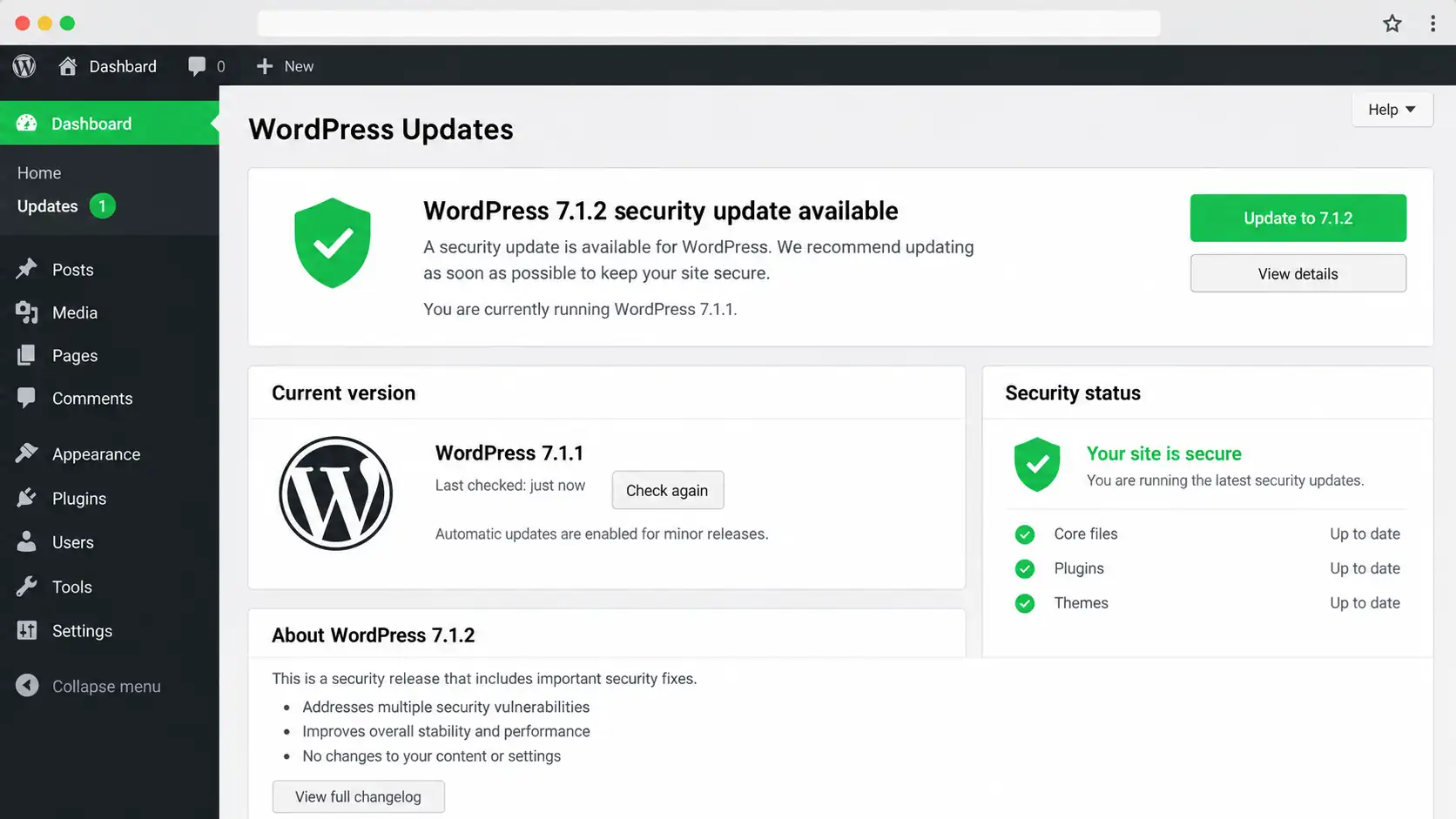
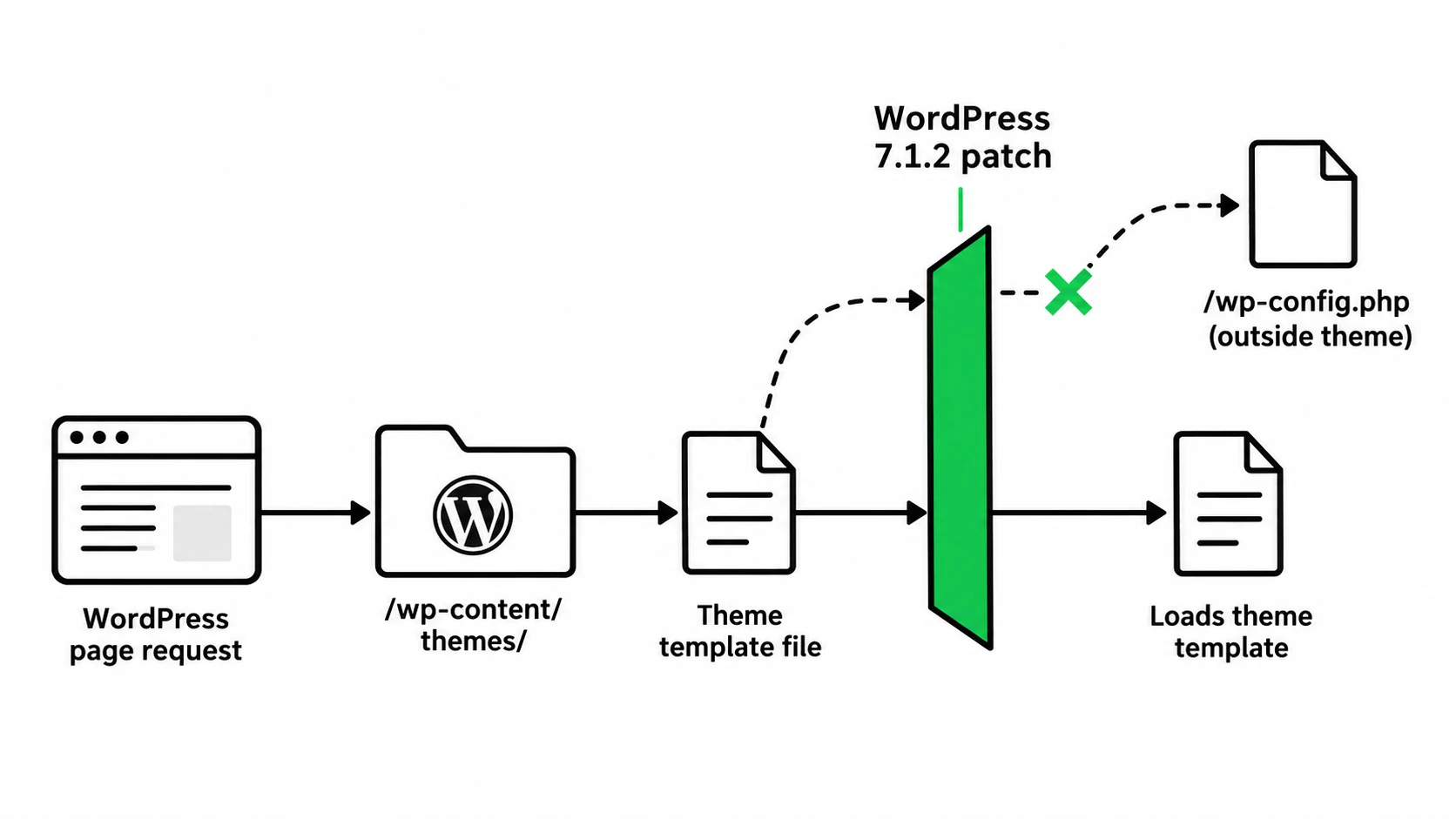
WordPress 7.1.2 was released on September 22, 2026 to fix CVE-2026-87902, a critical vulnerability in WordPress core. The issue can allow an unauthenticated attacker to make WordPress include a readable local PHP file outside the active theme directories. Under specific server and theme conditions, that can lead to remote code execution.
This is not a routine maintenance release where waiting a week is usually harmless. WordPress recommends updating immediately, and public reporting has already described active attempts to exploit the flaw after the patch became available. If you manage a business site, ecommerce store, membership site or lead-generation website, the useful question is not whether the vulnerability sounds technical. The useful question is whether the site is actually patched and whether the update completed cleanly.
What CVE-2026-87902 means in plain English
The vulnerability sits in the way WordPress resolves page templates. Normally, WordPress should load the intended template from the active theme. The flaw can be abused to make that process reach a readable PHP file elsewhere on the server. The official security advisory describes the issue as unauthenticated path traversal with the possibility of remote code execution when additional conditions are present.
Those conditions matter because the flaw is not identical on every hosting setup. They do not make an unpatched site safe. A website owner usually does not have a reliable reason to spend time proving that every exploitable condition is absent when an official patch is already available.
The practical response is simpler: identify the installed WordPress version, apply the appropriate patched release, verify the site, and investigate further if the website was exposed while vulnerable and there are signs of suspicious activity.
Who needs to update?
If the site is running WordPress 7.1.1 or an earlier affected release, it needs the security fix. WordPress also published patched point releases for older branches, but the project notes that only the latest WordPress version is actively supported. For most normally maintained sites, moving to the current stable release is the cleaner long-term position.
Older sites deserve extra care if they depend on abandoned plugins, custom theme code, an old PHP version or a hosting setup that has not been reviewed recently. That is a reason to control the update process, not a reason to leave the core vulnerability unpatched.
Sites where the update deserves a more controlled rollout
- WooCommerce stores where checkout, payment, tax or shipping failures would stop orders.
- Membership, booking or LMS websites with logged-in user workflows.
- Sites with custom themes, custom plugins or code added directly to a theme.
- Websites running older PHP versions or plugins with unclear compatibility.
- High-traffic sites where even a short outage has a measurable business cost.
A current backup and a staging test are especially useful in those cases. Blyfa already has a separate guide on creating a WordPress staging site before updates, so there is no need to turn this security article into a full deployment manual.
What to do today
- Confirm the installed version.
Check the Dashboard and, where appropriate, your hosting control panel. Record the version you see before making changes. - Make sure a recent restore point exists.
A backup is useful only if you can restore it. For a business-critical site, confirm that the backup includes both files and the database. - Apply WordPress 7.1.2 or the correct patched release.
Use the normal WordPress update process unless your hosting or deployment workflow requires a controlled release. If the site is on an older branch for compatibility reasons, verify the specific patched point release listed by WordPress. - Test the workflows that make the site useful.
Open the homepage and key templates, submit the contact form, test login if applicable, and complete a checkout test on ecommerce sites. Also check the mobile navigation and any page-builder templates that are important to enquiries or sales. - Review the site if it was exposed while vulnerable.
Look for unexpected administrator accounts, unfamiliar plugins, unexplained file changes, unusual PHP files, security alerts or suspicious server requests. If something looks wrong, preserve evidence before making broad cleanup changes.
If your concern is the update process itself, the existing guide on safe WordPress updates explains the same backup, staging and verification discipline in more detail.
What if the site cannot update cleanly?
A failed core update usually exposes another maintenance problem: incompatible extensions, old PHP, custom code that has not been tested recently, insufficient server resources or a fragile deployment process. Fixing the security issue still comes first, but a rushed sequence of unrelated changes can make diagnosis harder.
On a complex site, clone the current environment to staging, apply the security release there, and test the parts of the website tied to revenue or enquiries. If a plugin or theme fails, identify that component before changing anything else. The goal is to separate “WordPress needs a security patch” from “this site has an additional compatibility problem.”
Should you stay on an older WordPress branch because a patch was backported?
The backported security releases are valuable because they reduce immediate risk for sites that cannot move to the newest branch in one step. They should not be mistaken for an argument to keep an old WordPress installation indefinitely. WordPress explicitly states that only the latest version is actively supported.
If an old site needs a backported patch today, apply it. Then schedule the compatibility work needed to move the site onto a current WordPress, PHP, theme and plugin stack. A security patch solves the disclosed vulnerability; it does not turn an outdated maintenance setup into a healthy one.
What to monitor after the update
Once the patched version is live, keep the checks practical. Confirm that the update did not change the public site unexpectedly, then watch for errors that appear only after normal traffic resumes.
- Forms still submit and notifications arrive.
- WooCommerce cart, checkout and order creation work normally.
- Login, account and password-reset flows still work where used.
- Scheduled tasks, webhooks and integrations continue to run.
- No new PHP errors or unusual server activity appears in logs.
- Your security tooling is not reporting modified core files or new privileged users.
If you find an unfamiliar change that predates the update, do not assume the patch caused it. The site may need a separate compromise review.
The important part is verification, not the update button
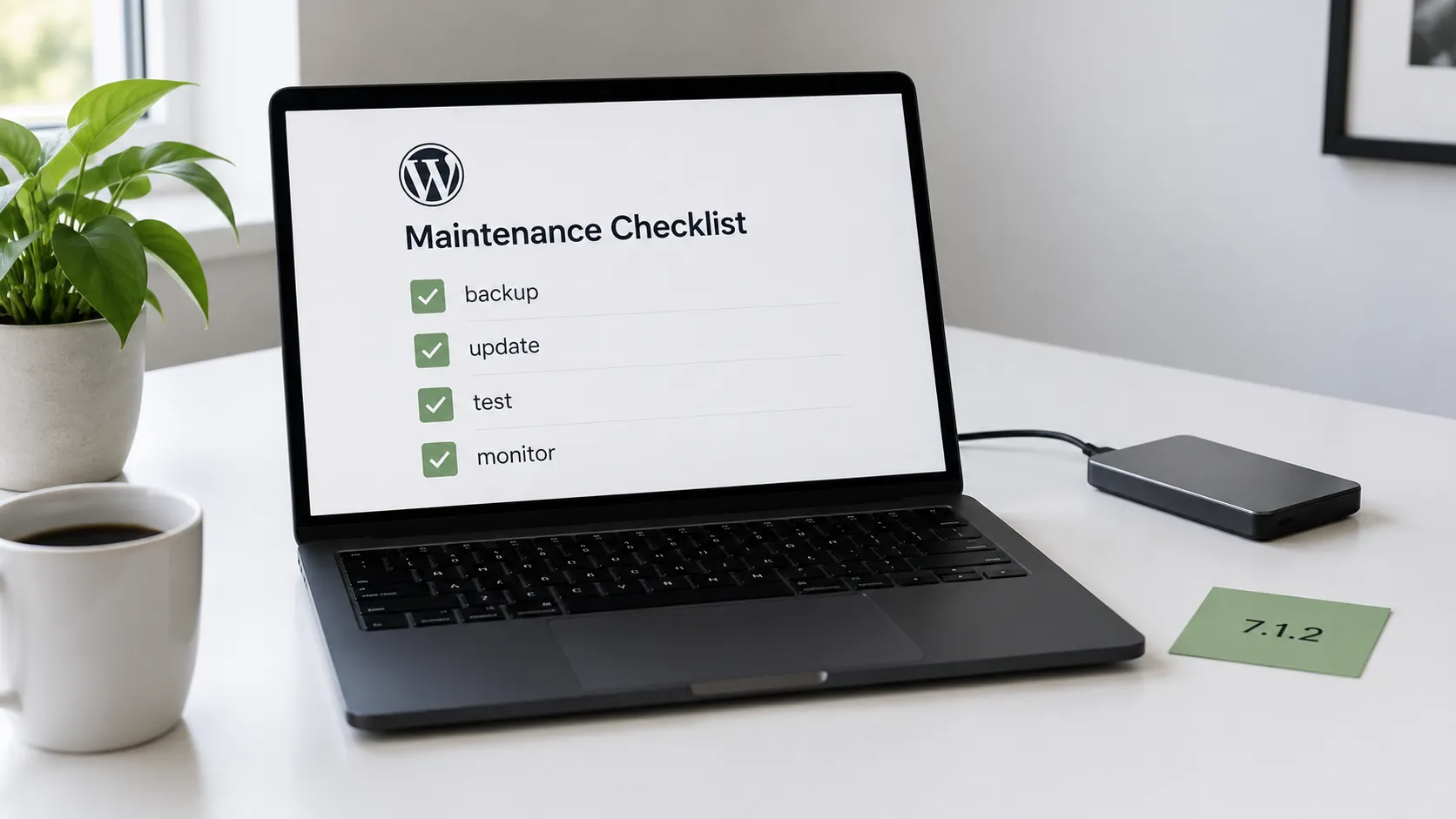
WordPress 7.1.2 closes a critical core vulnerability and should be applied promptly. For a straightforward site, the job may take only a few minutes. For a store or heavily customised installation, the safer approach is still fast: backup, patch, test the critical paths and monitor the result.
The most avoidable failure here is believing a site is protected without checking its actual version. Confirm the patch first. Then deal with compatibility, cleanup or longer-term maintenance as separate tasks.

Short comments related to this article.