
A safe WordPress plugin update is a short release process
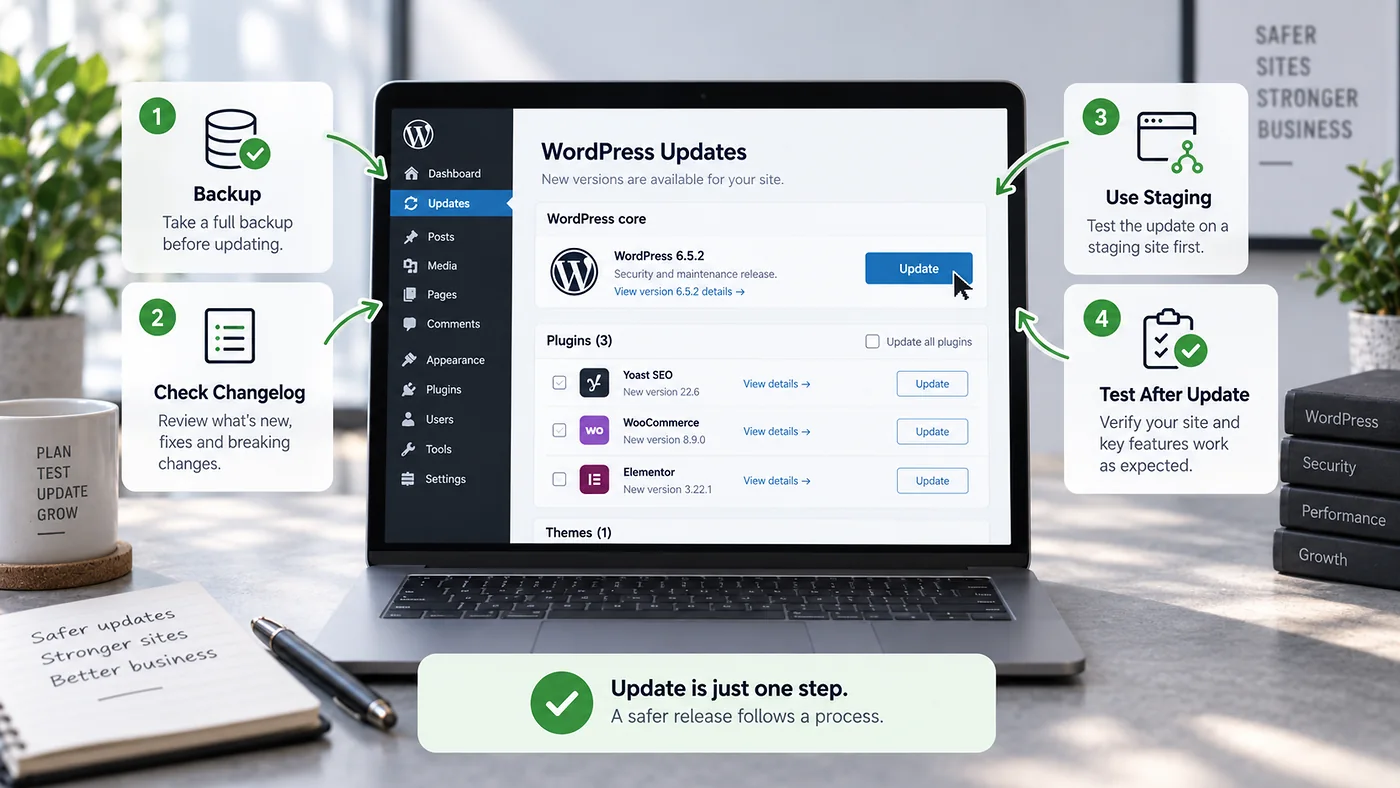
Clicking “Update” is easy. Updating without breaking the site means knowing what changed, having a restore point and checking the parts of the site that matter after the new code is running.
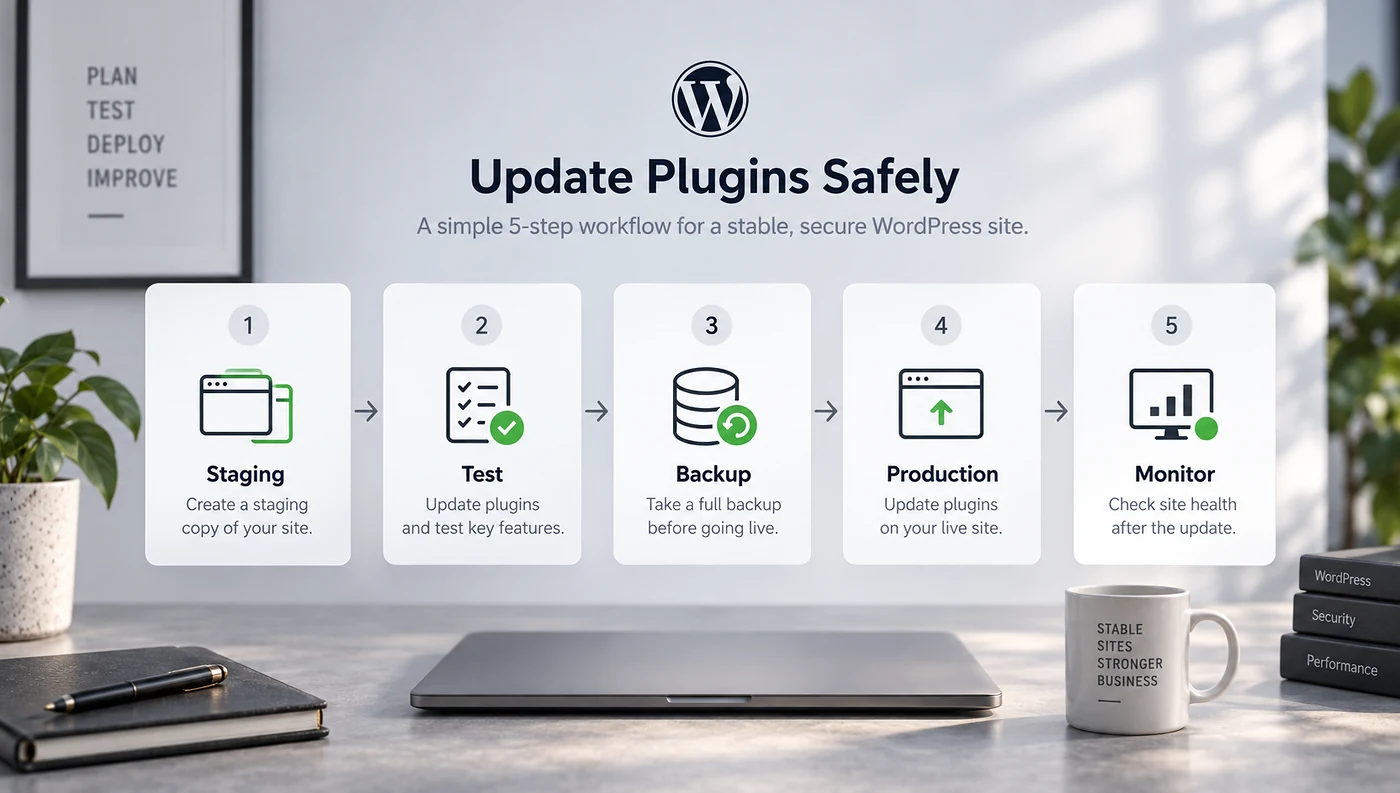
The 15-minute version
- Check that a current backup exists.
- Review the plugin changelog and compatibility notes.
- Test higher-risk updates on staging.
- Update in a small batch.
- Check forms, checkout, login and mobile layout.
- Record the result.
Risk is not the same for every plugin
| Plugin type | Typical risk if it fails | What to test |
|---|---|---|
| Contact form | Lost enquiries | Submit the form, verify validation, notifications and CRM delivery. |
| Page builder | Broken layouts across many pages | Representative templates, responsive views and editor access. |
| WooCommerce/payment | Lost transactions | Cart, checkout, payment sandbox, emails and order creation. |
| Cache/performance | Blank or stale pages | Logged-in/out views, dynamic pages and cache purge behaviour. |
| SEO | Metadata or index controls change | Titles, canonicals, robots directives, sitemaps and structured data. |
Before updating, capture enough information to reverse the change
- Current plugin version
- New plugin version
- WordPress and PHP versions
- Current full-site backup
- Licence or download access
- Known custom code touching the plugin
- Critical pages or workflows to retest
- Rollback method if the site fails
Update in a way that lets you identify the cause
If you update 25 plugins, the active theme and WordPress core in one click, troubleshooting becomes a guessing exercise. Group low-risk updates where sensible, but keep business-critical components controlled enough that a failure can be traced.
When automatic updates make sense
Automatic updates can be useful for low-risk components on well-monitored sites, especially when backups and alerting are reliable. They are less suitable as a blanket policy for every plugin on a complex site. The decision should reflect the plugin’s business impact, update history and how quickly you would know if the site broke.
What to do if an update breaks the site
Do not immediately change several unrelated settings. Restore service first by deactivating or rolling back the suspected component, then reproduce the failure on staging. If WordPress shows a fatal error, follow the separate guide on fixing a WordPress critical error after a plugin update.
For recurring maintenance, browse the Website Support guides or review Blyfa’s website support service for a process that combines updates, backups, testing and troubleshooting.
Make every update reversible
If you know what changed, how to test it and how to roll it back, WordPress maintenance becomes routine rather than stressful.
Get help with WordPress maintenance
Short comments related to this article.