
A WordPress staging site is a working copy, not just a backup
A staging environment lets you test plugin updates, theme changes, custom code and configuration away from visitors. The point is not to create a perfect duplicate forever; it is to create a controlled place where you can break things, inspect the result and decide what is safe to move to production.
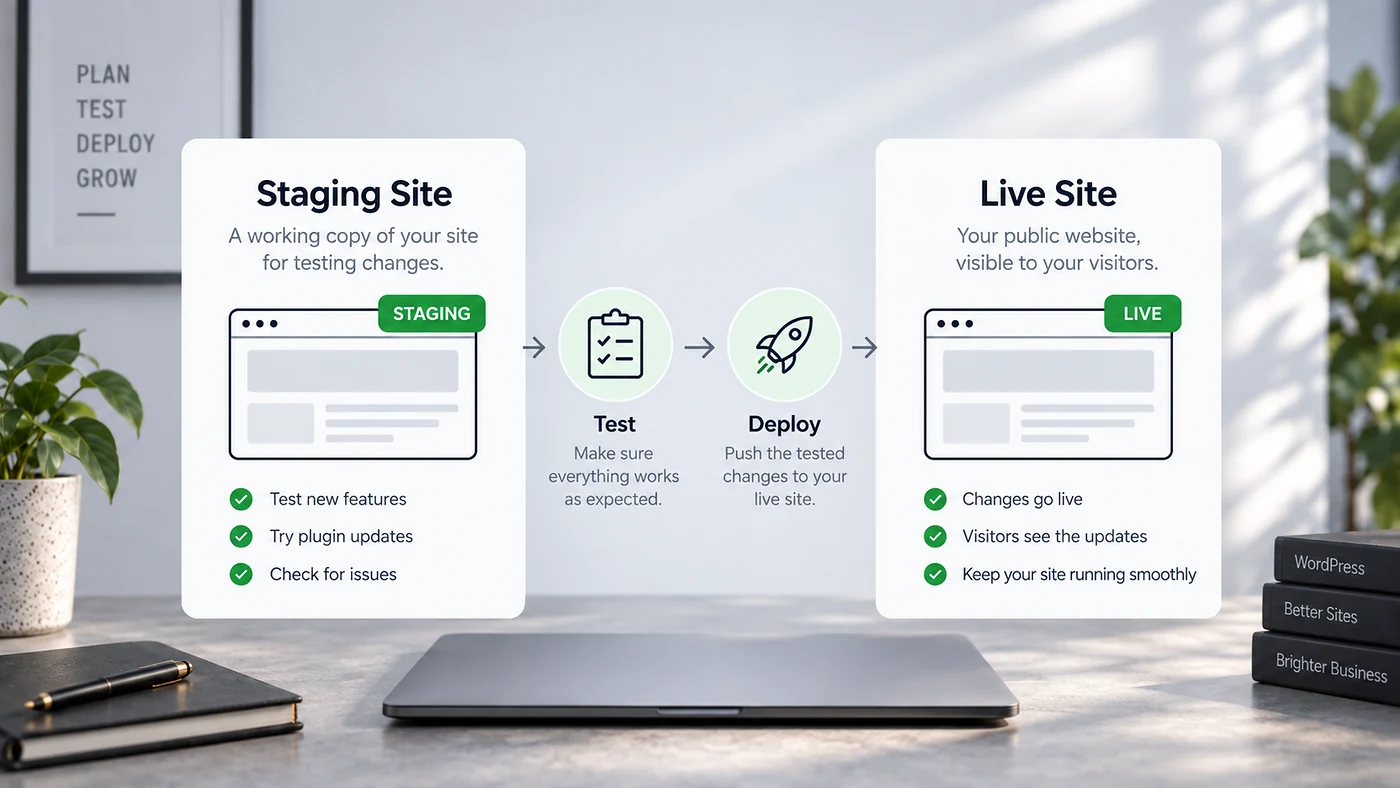
Choose the staging method that matches the site
Usually the easiest option. The host handles cloning and may provide push/pull controls. Confirm what gets copied and whether database changes can be merged safely.
Useful on hosts without a built-in tool. Check storage requirements, exclusion options and how the plugin handles large media libraries or database tables.
Best when you need full control. Clone files and database to a subdomain or separate environment, then update URLs and environment-specific configuration.
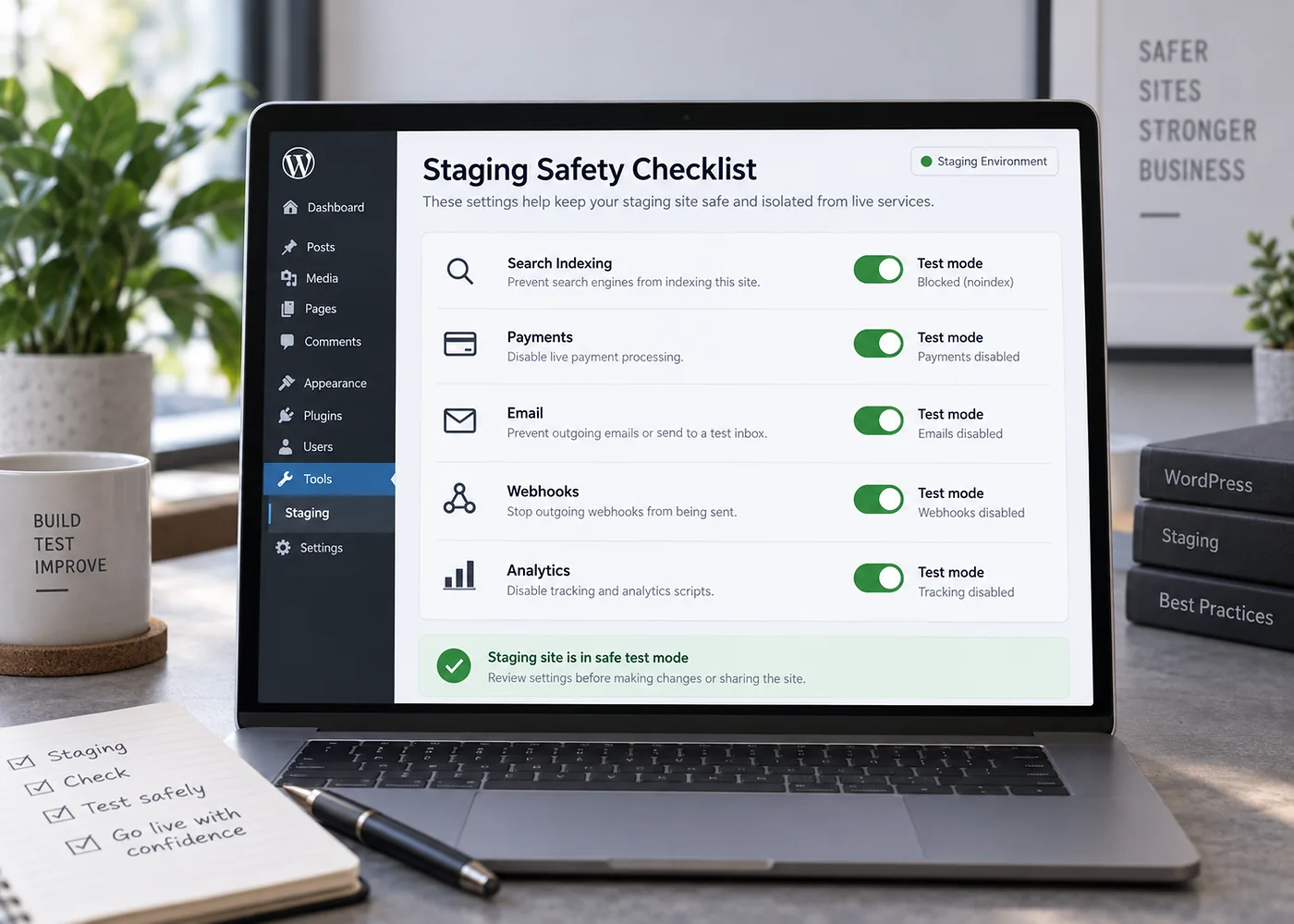
Before the first clone, decide what must not happen on staging
A copied site can still send email, call APIs or process scheduled jobs unless you deliberately neutralise those behaviours. This matters most for ecommerce, memberships and sites connected to CRMs or automation tools.
- Prevent search-engine indexing
- Password-protect or otherwise restrict public access
- Disable real payment processing
- Prevent customer-facing email from being sent
- Review webhooks and external API calls
- Separate analytics from production reporting
- Disable destructive scheduled jobs
- Mark the admin clearly as STAGING
A practical staging workflow before plugin updates
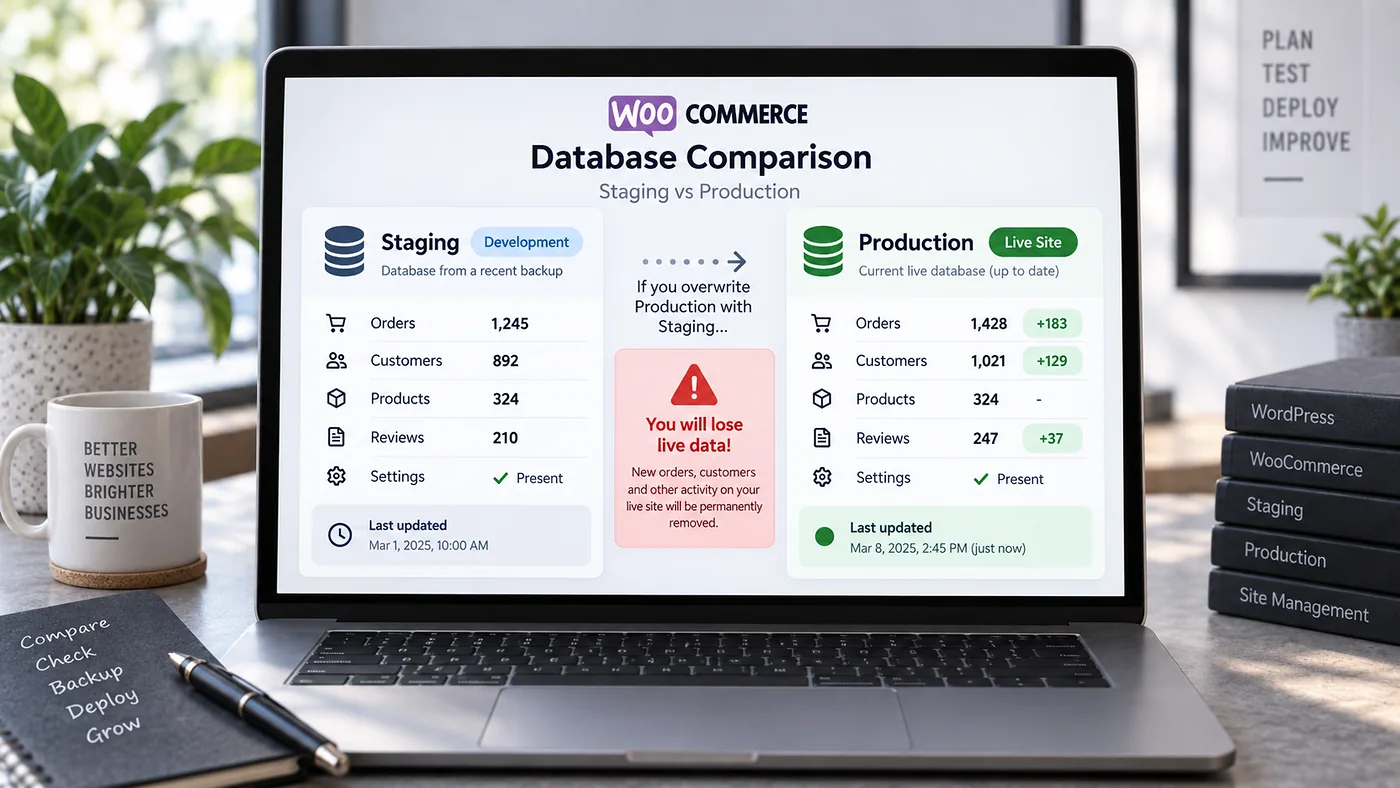
Be careful when pushing a staging database to a live site
On a brochure site, replacing the live database may be straightforward if no content changed during testing. On an active WooCommerce, membership or booking site, the live database may have new orders, users, comments or reservations that do not exist on staging. A full database overwrite can erase those changes.
| Site type | Main staging risk | Safer approach |
|---|---|---|
| Brochure site | Editors publish content while testing is in progress. | Freeze edits briefly or move only the intended configuration/code changes. |
| WooCommerce | New orders and customer data exist only on live. | Avoid replacing the complete live database; deploy code and controlled changes instead. |
| Membership | New accounts and profile changes can be overwritten. | Plan database-level changes carefully and test migrations separately. |
| Booking site | Live reservations can disappear after a full push. | Preserve transactional tables and use deployment steps that do not overwrite live bookings. |
Keep staging useful instead of letting it become a second abandoned website
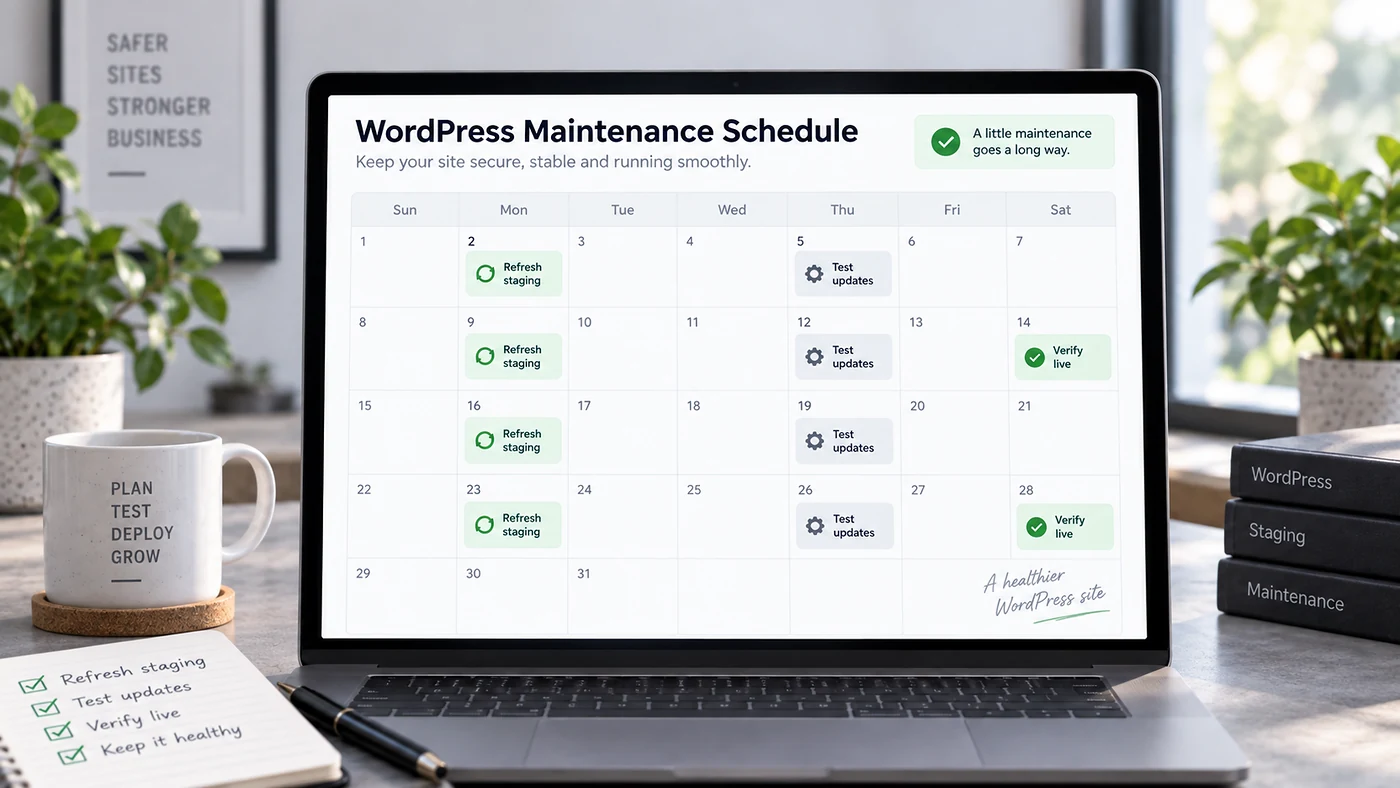
Old staging environments become misleading. If the clone is months behind production, a successful test says little about the current live site. Refresh staging before meaningful work, keep access restricted, remove stale copies you no longer need and document any environment-specific differences.
For related maintenance workflows, browse the WordPress guides and the Website Support category. If you would rather have staging, updates and verification handled as one recurring process, see Blyfa’s website support service.
Staging is useful when the deployment process is clear
Clone, isolate, test, deploy and verify. The tool matters less than the discipline around it.
Set up a safer maintenance workflow
Short comments related to this article.