
“The link you followed has expired” in WordPress does not always mean the link is old
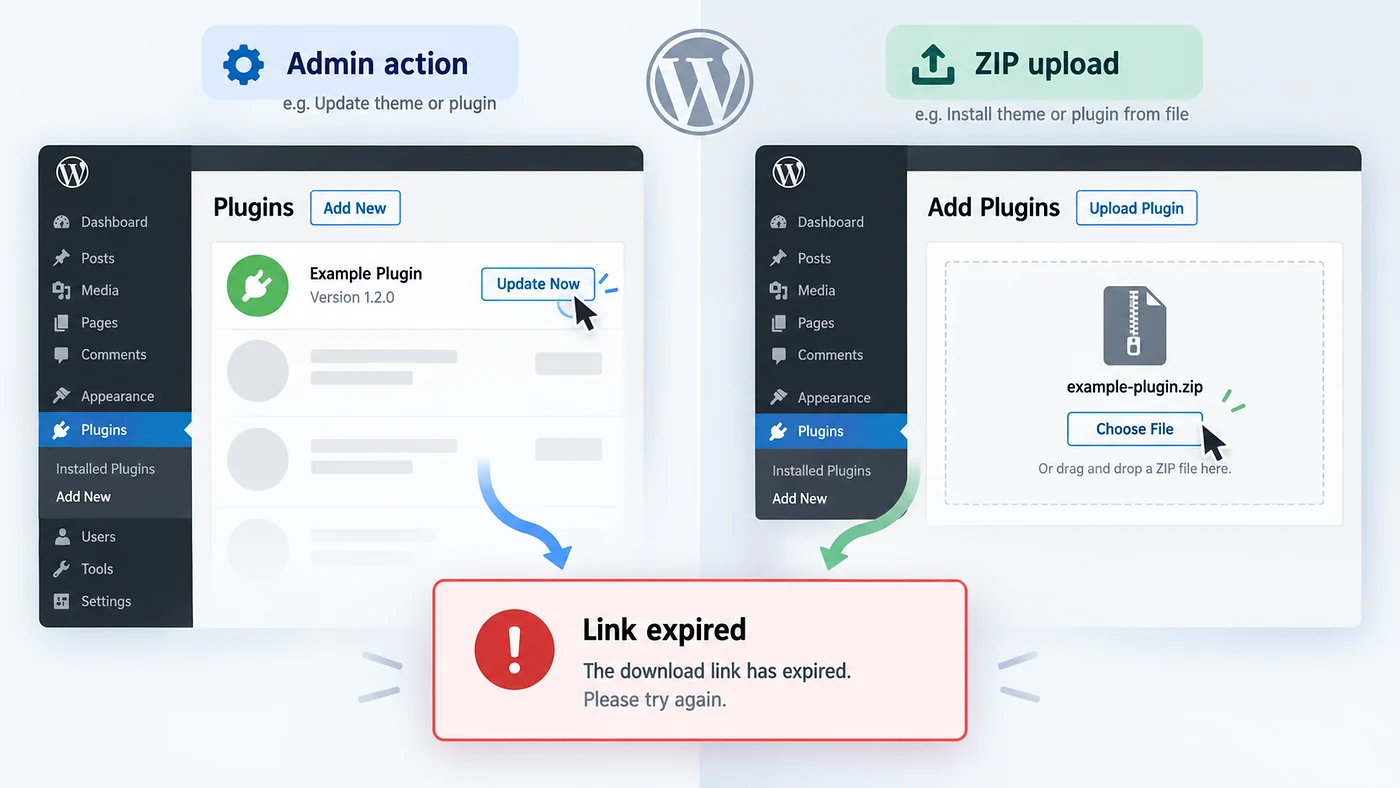
This WordPress message can appear for two different reasons: an admin action used an expired or invalid security token, or an upload request exceeded server limits. The fastest fix is to identify which situation you are in before changing PHP settings.
If it appears after clicking an admin action
Return to the original WordPress screen, reload it and repeat the action. A fresh page creates a fresh security token. If the problem persists, investigate caching, cookies, login sessions or a plugin that interferes with admin requests.
If it appears while uploading a theme or plugin ZIP
Check the file size and the server’s effective upload limits. The request may be larger than upload_max_filesize or post_max_size, or may run into execution limits.
Fix path A: refresh the admin action
Fix path B: check upload limits before increasing anything
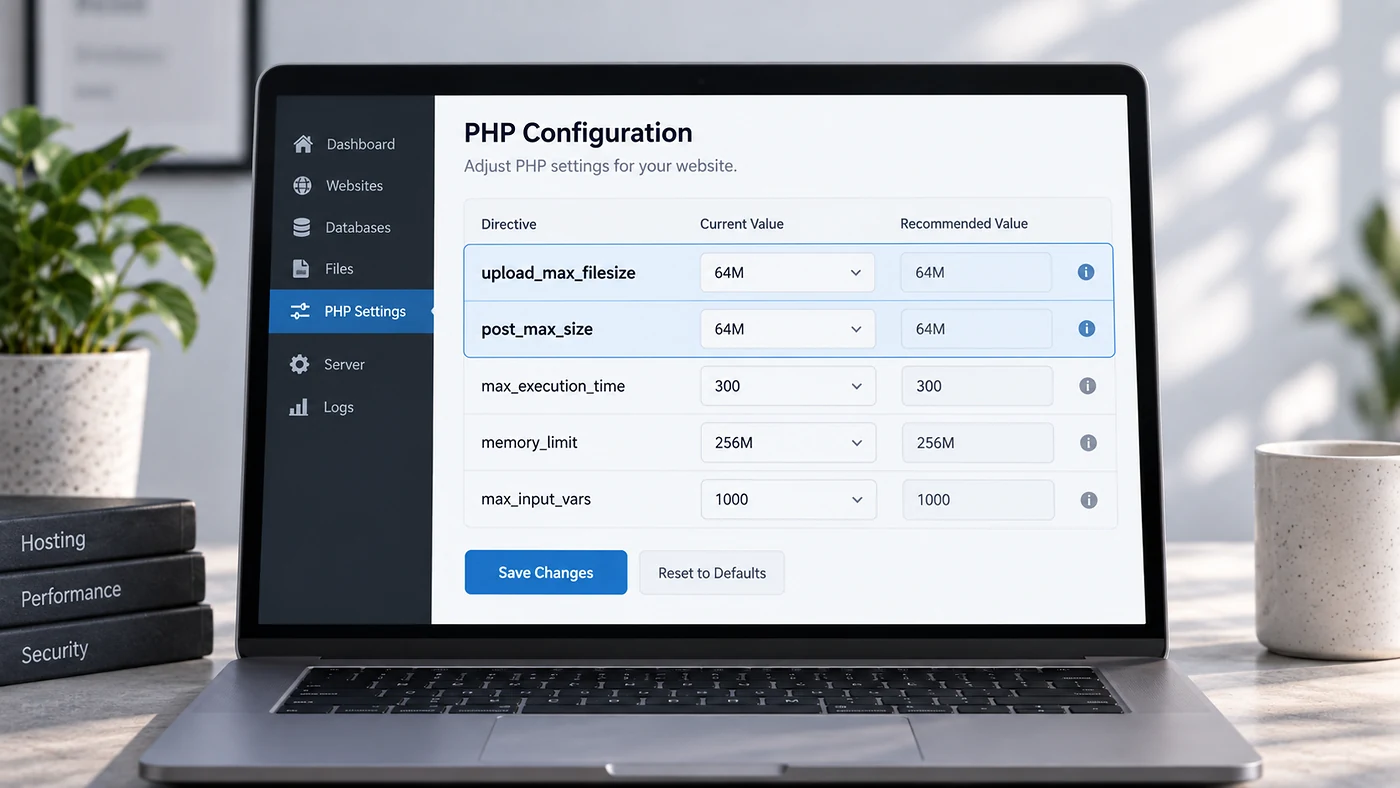
When the message appears during a theme or plugin upload, first inspect the ZIP size and the server values visible in your hosting panel or WordPress Site Health information. The important relationship is that the full POST request must fit within the server’s configured limits.
| Setting | What it controls | Practical check |
|---|---|---|
upload_max_filesize | Maximum size of one uploaded file. | Must be larger than the ZIP you are uploading. |
post_max_size | Maximum size of the complete POST request. | Should be larger than upload_max_filesize, not equal to the ZIP size. |
max_execution_time | How long a PHP request may run. | Relevant if extraction or installation times out. |
memory_limit | PHP memory available to the process. | Only increase it when logs or host diagnostics show memory pressure. |
If your host allows per-site PHP configuration, a configuration file may look like this:
upload_max_filesize = 64M
post_max_size = 96M
max_execution_time = 180
max_input_time = 180
Do not copy large values blindly. Use the smallest values that fit your legitimate upload and follow the method your host supports—control panel, php.ini, .user.ini or support request. Some managed hosts ignore local overrides.
What not to do
- Do not edit multiple server files at once
- Do not raise every PHP limit to an extreme value
- Do not assume the purchased download link is broken
- Do not disable security checks to make the action pass
- Do not make production changes without a backup
- Do not forget to retest the original action after each change
If the error keeps returning
Repeated expired-link errors during ordinary admin actions can point to stale cached pages, session problems, incorrect time configuration or code that creates or verifies admin requests incorrectly. At that point, capture the exact screen and action that triggers the message and reproduce it on staging. A specific reproduction path is far easier to debug than “WordPress sometimes says the link expired.”
For more troubleshooting workflows, browse the WordPress guides. If the site has recurring admin or update failures, the issue may be broader than one setting; Blyfa’s website support can review the WordPress stack, hosting and update process together.
Fix the cause that matches the trigger
Admin-action errors and upload-limit errors can look identical on screen. Diagnose the trigger first, then make the smallest necessary change.
Ask for WordPress troubleshooting
Short comments related to this article.