
WordPress critical error after a plugin update: start with recovery, not random edits
If WordPress shows “There has been a critical error on this website” immediately after a plugin update, the fastest safe route is to preserve the current state, identify the failing component and restore access before changing unrelated settings.
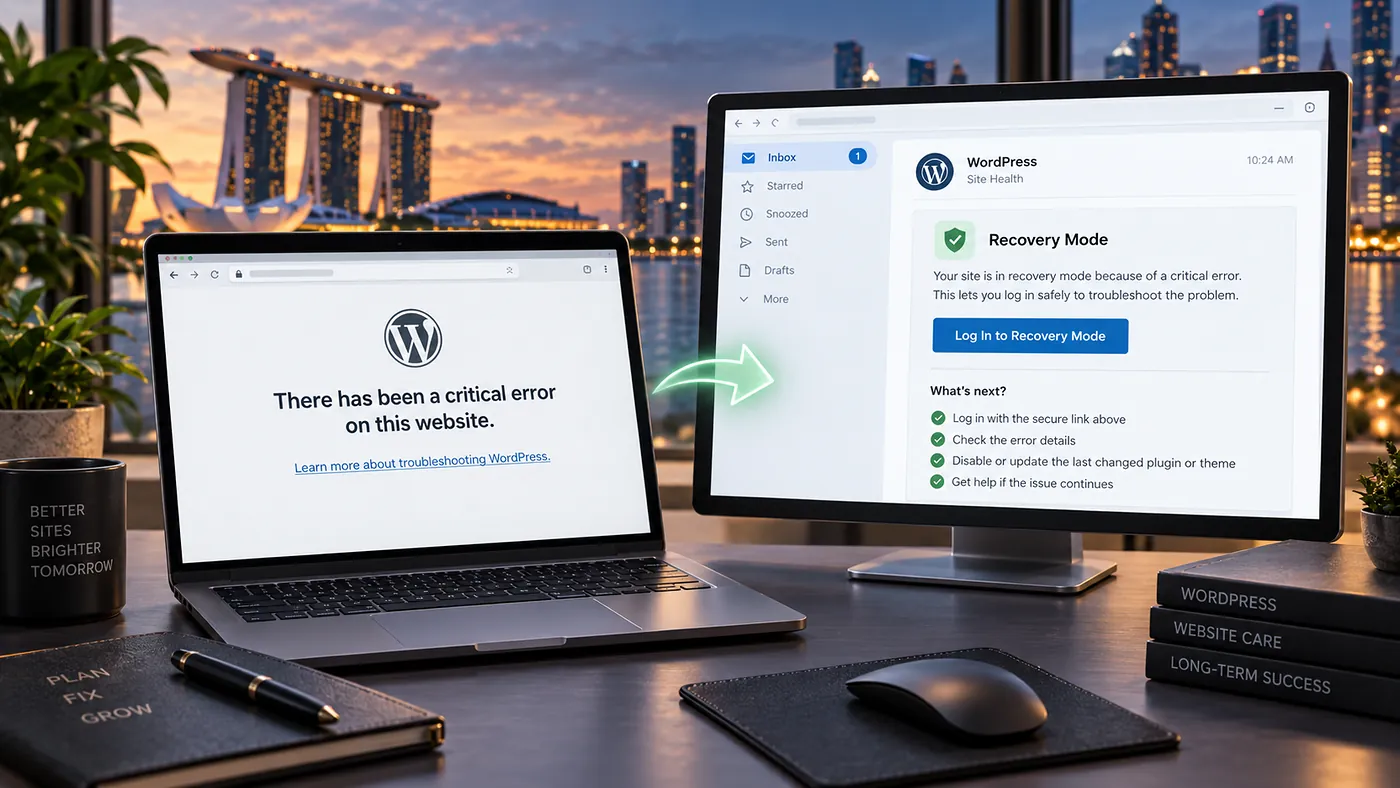
1. Check WordPress Recovery Mode first
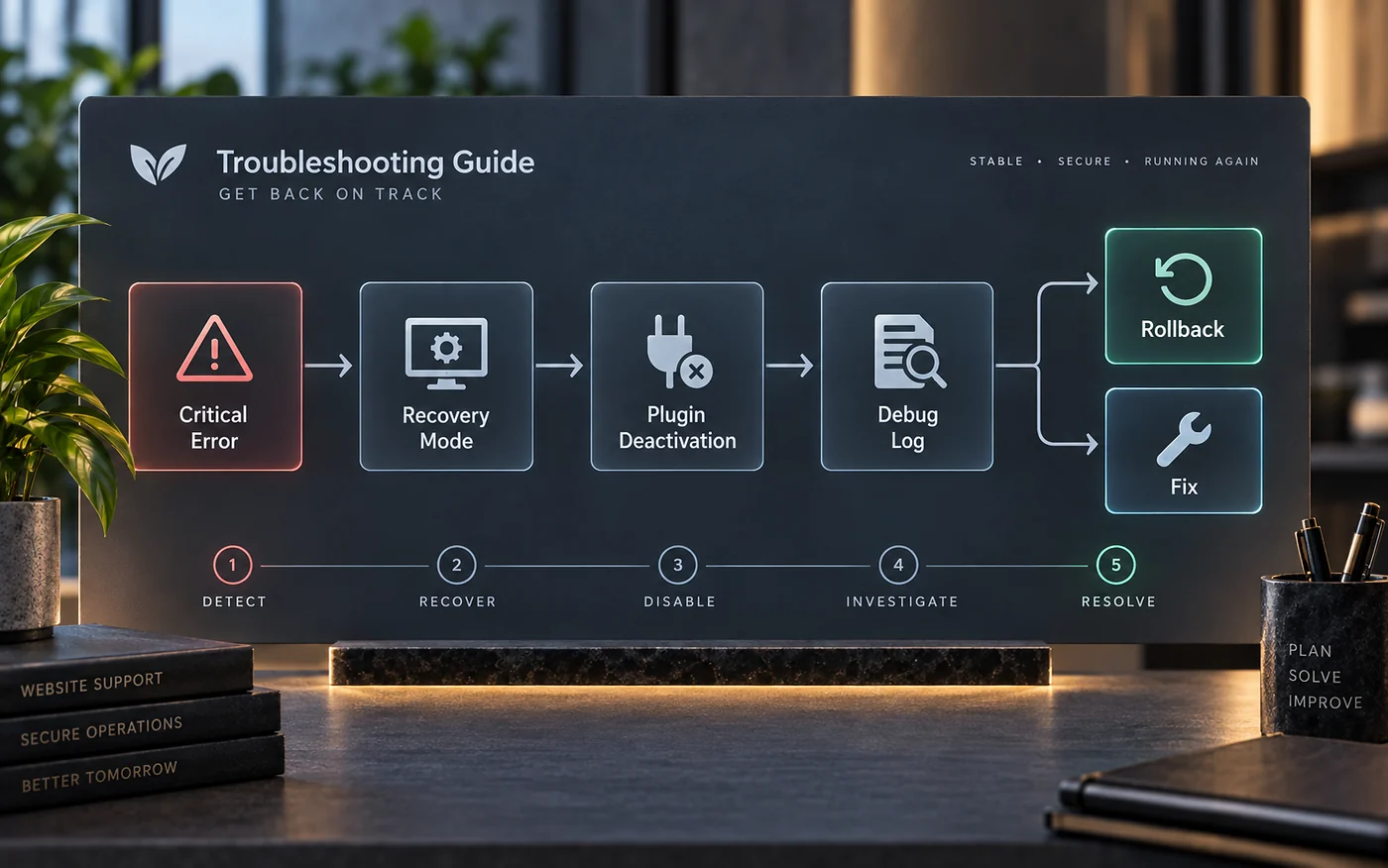
Modern WordPress can send the site administrator an email when it detects certain fatal PHP errors. The message may include a Recovery Mode link that lets an administrator sign in while the problematic plugin or theme is paused for that session. If the email arrives, this is usually the cleanest first route because it reduces the need to edit files directly.
Inside Recovery Mode, look for the component named in the error notice. Deactivate it temporarily, then open the public site in a separate browser window to verify that the critical error is gone.
2. If you cannot enter wp-admin, deactivate the plugin from the file system
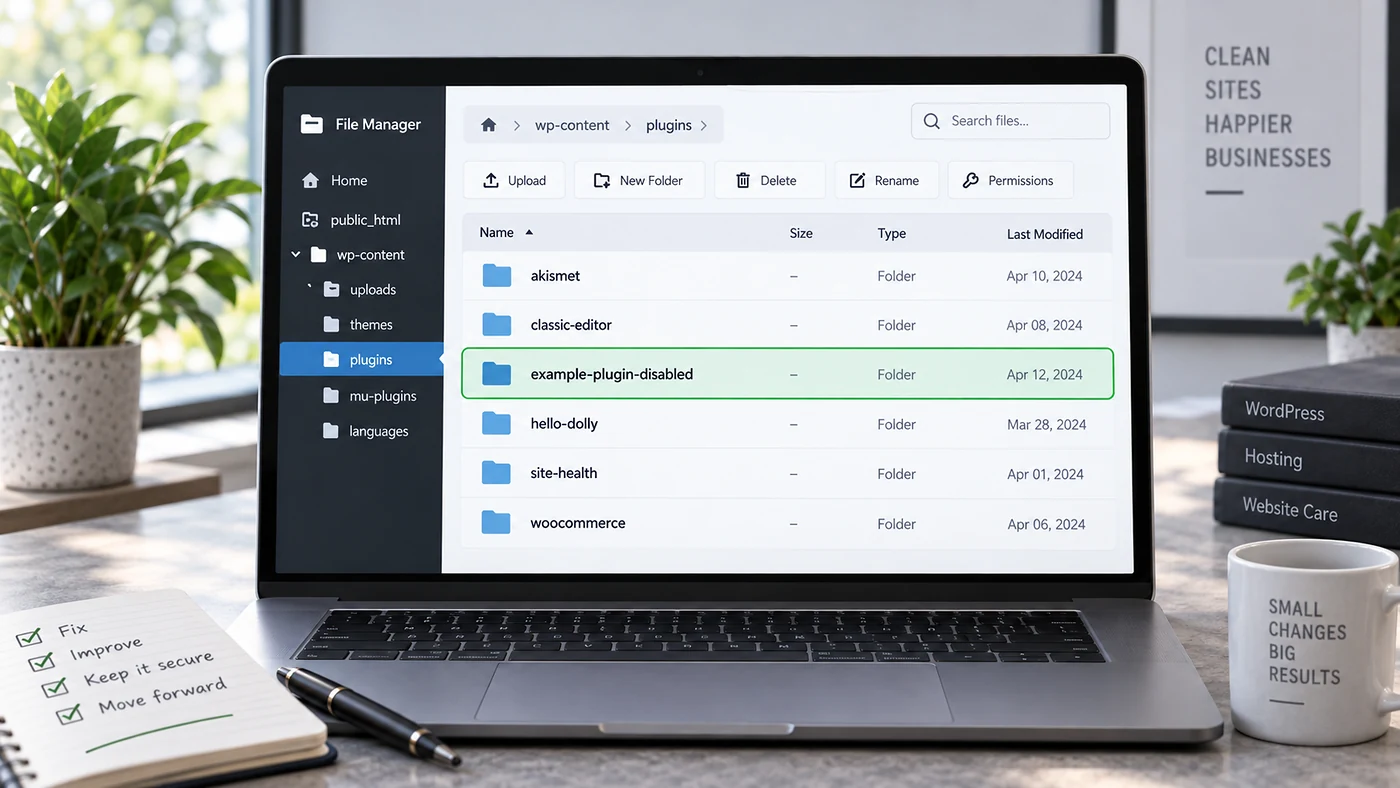
If the recovery email does not arrive or the dashboard remains inaccessible, use your host’s file manager, SFTP or SSH. In wp-content/plugins/, rename only the suspected plugin folder. WordPress will no longer find that plugin at its expected path and will deactivate it.
wp-content/plugins/example-plugin/
→
wp-content/plugins/example-plugin-disabled/
Reload the site. If it returns, you have strong evidence that the failure is connected to that plugin or an interaction involving it. Do not immediately delete the folder; keeping it available makes rollback and comparison easier.
3. Turn on logging without displaying errors to visitors
When you need the exact PHP error, WordPress debugging can write errors to a log file. On a live site, avoid displaying raw errors publicly because they can expose paths or technical details. A common diagnostic configuration is:
define( 'WP_DEBUG', true );
define( 'WP_DEBUG_LOG', true );
define( 'WP_DEBUG_DISPLAY', false );
@ini_set( 'display_errors', 0 );
Add the settings in wp-config.php before the line that tells you to stop editing. Then reproduce the error once and inspect wp-content/debug.log. After diagnosis, disable debugging on the live site.
4. Read the error for the first useful clue
Often points to a missing dependency, load-order problem or incompatible plugin version.
The immediate failure is memory-related, but raising the limit is not a substitute for finding unusually heavy code or a runaway process.
Frequently indicates broken custom code, a failed file deployment or code that requires a different PHP version.
5. Decide between rollback, update or replacement
If the plugin update caused the failure, the next action depends on what the log shows. A known compatible previous version may be the right temporary rollback. In other cases, another plugin, the theme or PHP version is the real compatibility boundary. Avoid treating “install the old version forever” as the final fix.
How to stop the same failure from happening on the next update
- Keep a current restorable backup before updates
- Use staging for higher-risk changes
- Update in controlled batches, not every component at once
- Record the versions changed during each maintenance window
- Test forms, checkout and other business-critical flows afterwards
- Remove abandoned plugins instead of carrying them indefinitely
If you maintain the site yourself, the WordPress guides can help you build a safer update workflow. If the error keeps returning or the site has several unresolved compatibility issues, Blyfa’s website support service can handle the diagnosis and ongoing maintenance as one process.
Need the site stable before the next update?
Document the failing component, preserve a restore point and fix the dependency rather than repeatedly treating the symptom.
Get WordPress support
Short comments related to this article.